
1 · First steps
Getting started
Install Racketry from Google Play on an Android phone with Android 13 or newer. You don't need a smart racket: the phone's camera is enough.
Sign in
- Open the app and tap Continue with Google. Racketry uses the Google account already on your phone: there is no password to remember.
- If the phone has more than one Google account, pick the one you want. From then on the app keeps you signed in and signs in by itself.
- Your name and picture come from your Google account. Change them any time in your profile.
What the app asks for
- Camera, to record your points.
- Notifications, to tell you when your highlights video is ready and when friends react.
- Nearby devices, only if you connect a Racketry smart racket.
Tip The bar at the bottom takes you everywhere: AI Rec, Points, the Racketry button for the Feed, Stats and Calendar. Your picture at the top opens your profile.
2 · AI Rec
Recording your play
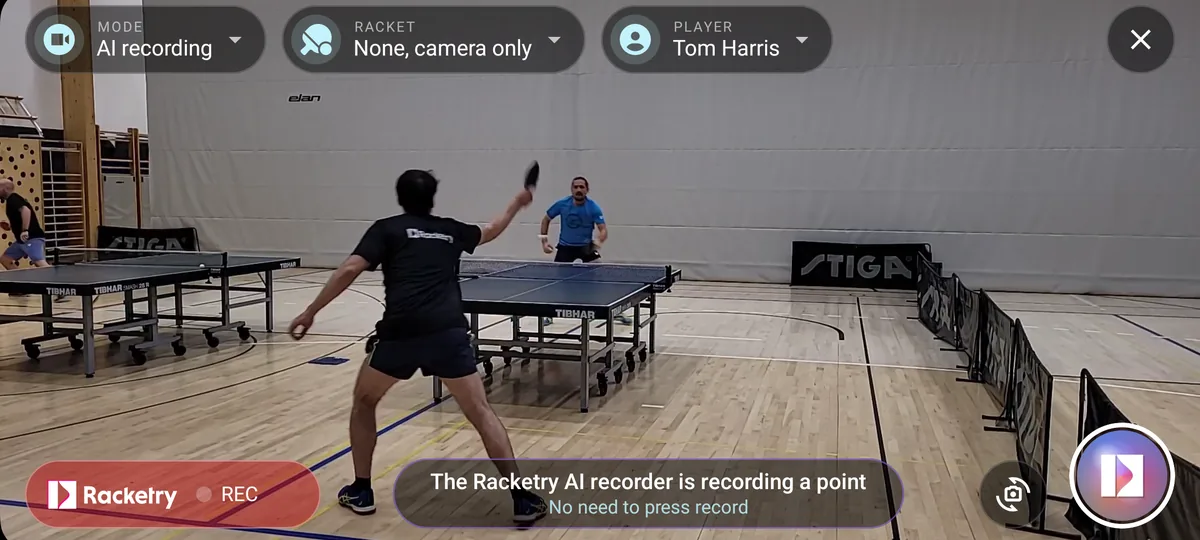
Tap AI Rec. The phone turns on its side and shows the camera. With the AI recording mode on, the Racketry AI recorder watches the table: it starts recording when a rally begins and stops when it ends, so only the points are kept. There is nothing to press while you play.
Set up the phone
- Stand the phone by the court, on its side, with the whole table in view: both ends and the net.
- At the top, check Mode (AI recording), Racket and Player.
- Play. The label at the bottom left says Ready between rallies and REC while a point is being recorded.
- When you're done, tap the ✕ at the top right. Your points are already saved.
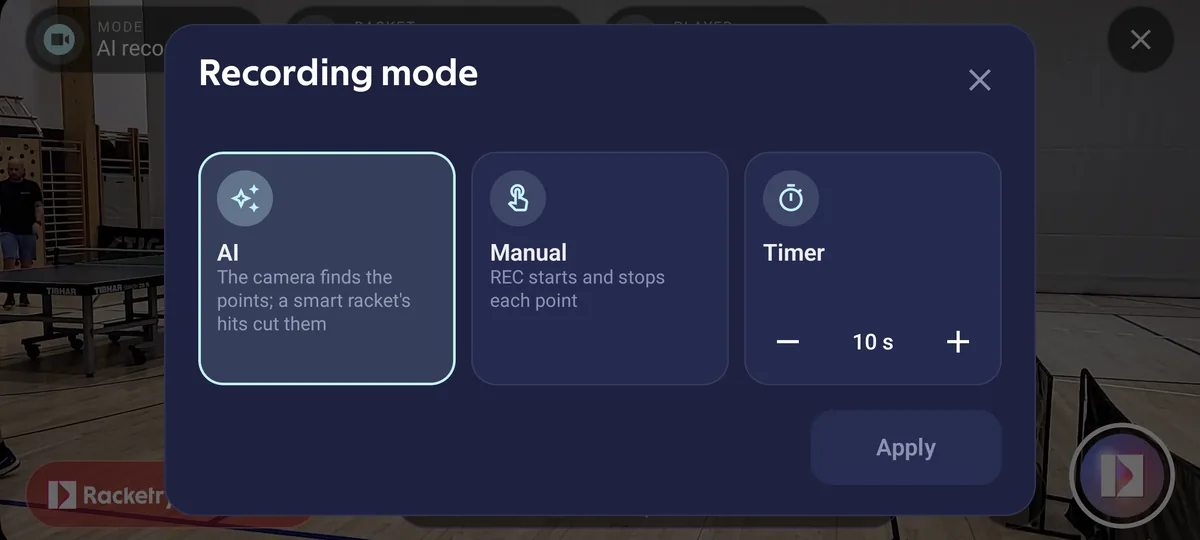
Recording modes
- AI: the camera finds the points. With a smart racket, its hits cut them.
- Manual: you tap the record button to start and stop each point.
- Timer: each point lasts the time you set (10 seconds to start with).
Racket and player
Under Racket, keep No racket to record with the camera alone, or pick your connected smart racket. Player is who the points are saved for: you, unless you pick someone else (see Players and rackets).
Tip The round arrow button next to the record button switches between the phone's cameras.
3 · Points
Your points
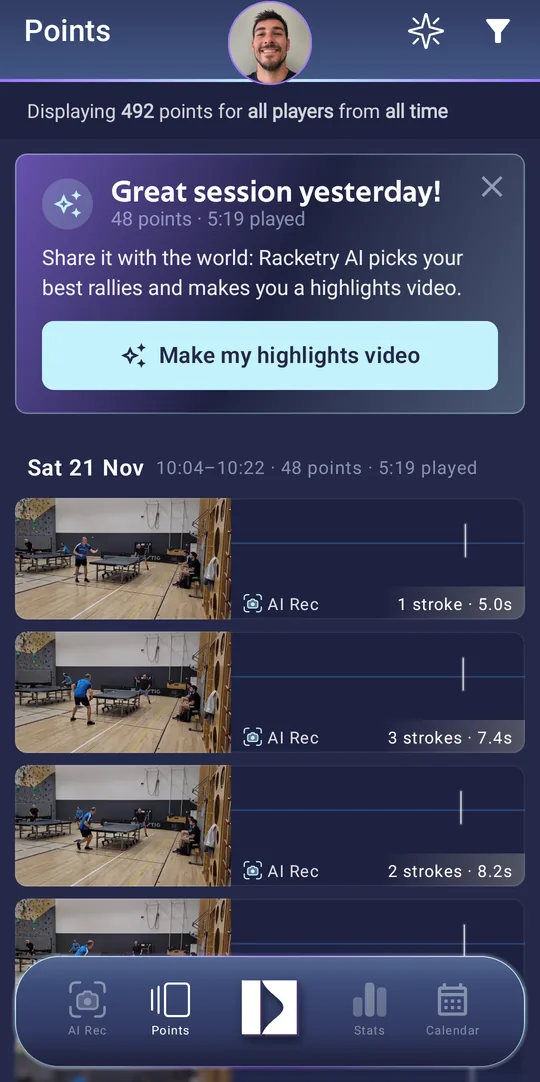
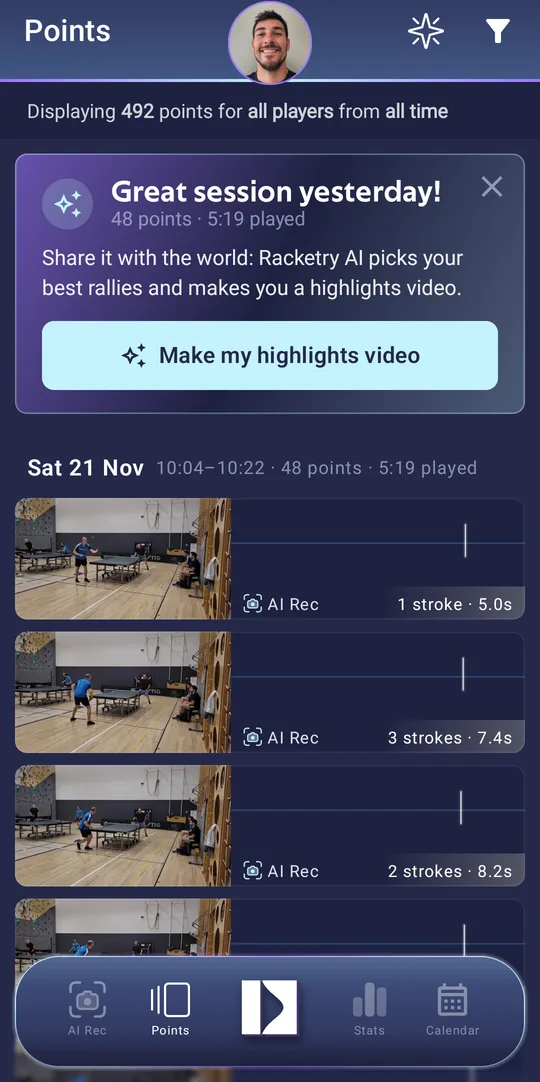
Every point you record is on the Points screen, newest first and grouped by session: the day, when you played, how many points and how long the ball was in play.
Each point shows its video, its length and its strokes. The lines on the right are the moments the ball was hit; a flame marks a long rally.
Find points
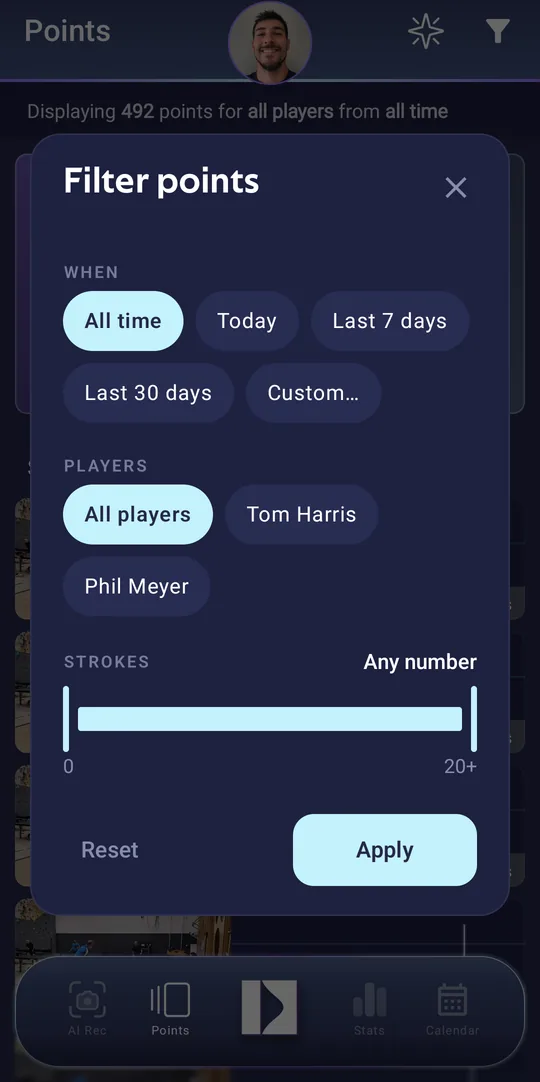
- Tap the filter at the top right.
- Pick when (all time, today, the last 7 or 30 days, or your own dates), the players, and how many strokes a point must have.
- Tap Apply. The line under the title says what is shown; Reset shows everything again.
After a session
Right after you play, a card at the top offers Make my highlights video: see Highlights.
4 · A point
Reliving a point
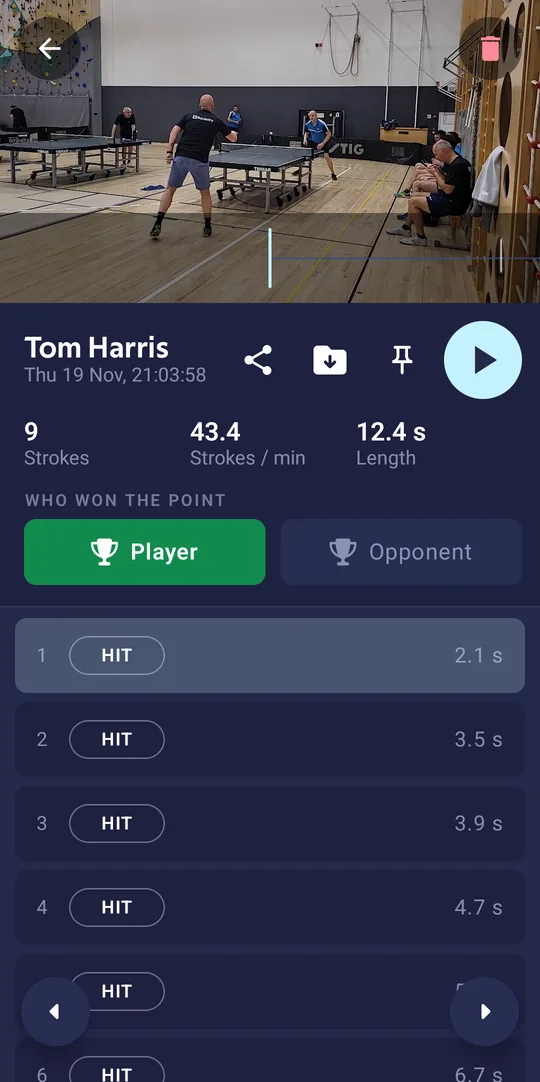
Tap a point to open it. The video is at the top; tap the round play button to watch it. Under it: the strokes, strokes per minute and the point's length, then each hit with its time in the video.
What you can do
- Who won the point: tap Player or Opponent. It counts in your stats and on highlights.
- Share the point with friends or in other apps.
- Save the video to your phone's gallery.
- Pin it to your profile, so others see your best points.
- Delete it with the bin at the top right. Its video is removed; the point still counts in your stats.
- The arrows at the bottom go to the previous and next point.
5 · Stats
Your statistics
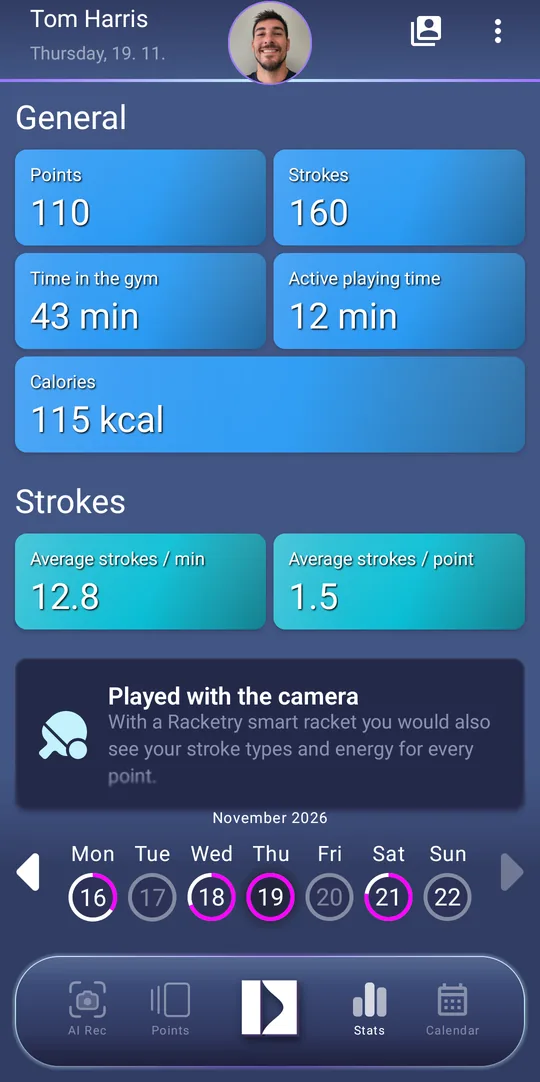
Stats shows one player's day: points, strokes, time in the gym, active playing time and calories, with the average strokes per minute and per point.
Use it
- Pick the day in the week strip at the bottom; the arrows go to other weeks. Days you played have a ring.
- To see another player, tap the button at the top right and pick them.
- The menu (⋮) updates the statistics or exports all of them.
Tip Played with the camera only? With a Racketry smart racket you also see your stroke types and the energy of every stroke.
6 · Calendar
Your calendar
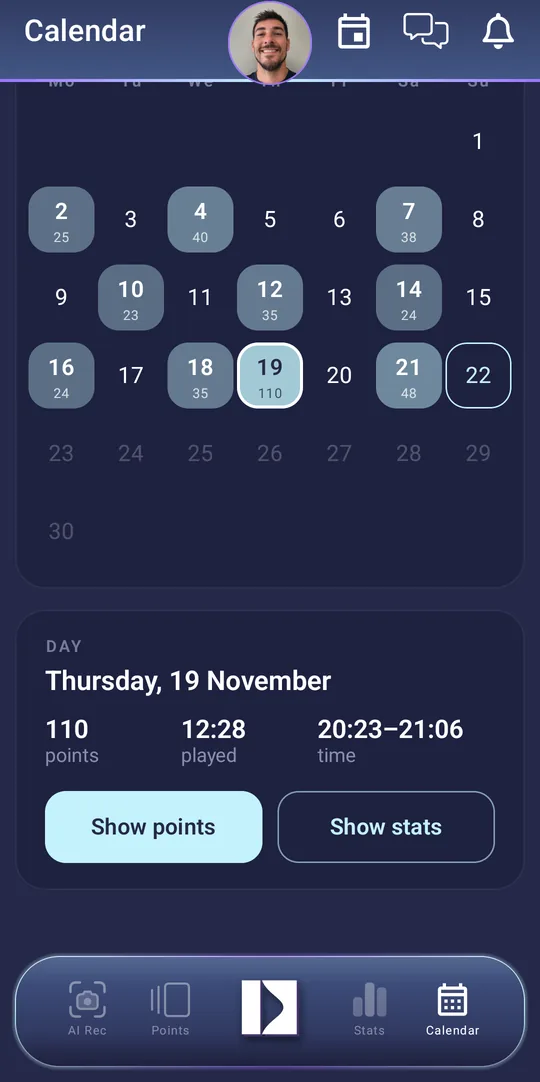
The Calendar shows the month: every day you played, with its number of points. The line under the month says how many days you played and how many points.
Use it
- Tap a day. The card under the calendar shows its points, the time played and when you played.
- Tap Show points to see that day's points, or Show stats for its statistics.
- The arrows next to the month go back and forward.
7 · Highlights
Highlights videos
A highlights video is your best rallies of a session, one after another, with the players' names, the score and the Racketry mark.
Make one
- After a session, tap Make my highlights video on the Points screen. Racketry AI picks your best rallies.
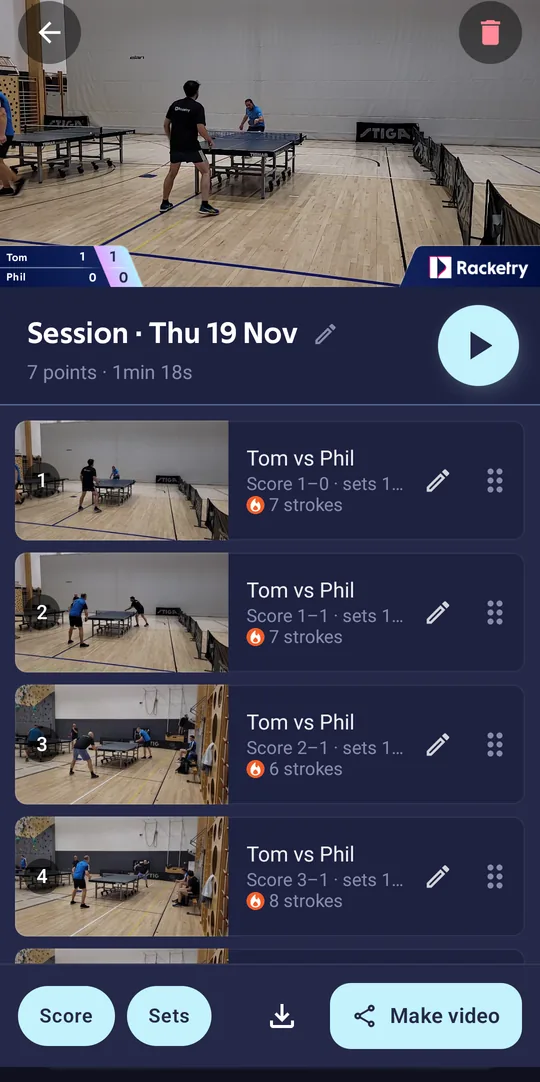
- The highlights open: the video at the top, its points below. Tap play to watch.
- Tap the pencil on a point to set the names and the score shown on it, or to take it out. Drag the dots on the right to change the order.
- Score and Sets switch the score and the sets on the video on or off.
- Tap Make video to make the video and share it; the download button saves it to your phone.
Find them again
The sparkle button at the top of the Points screen opens all your highlights, newest first.
8 · Feed
Feed, friends and chat
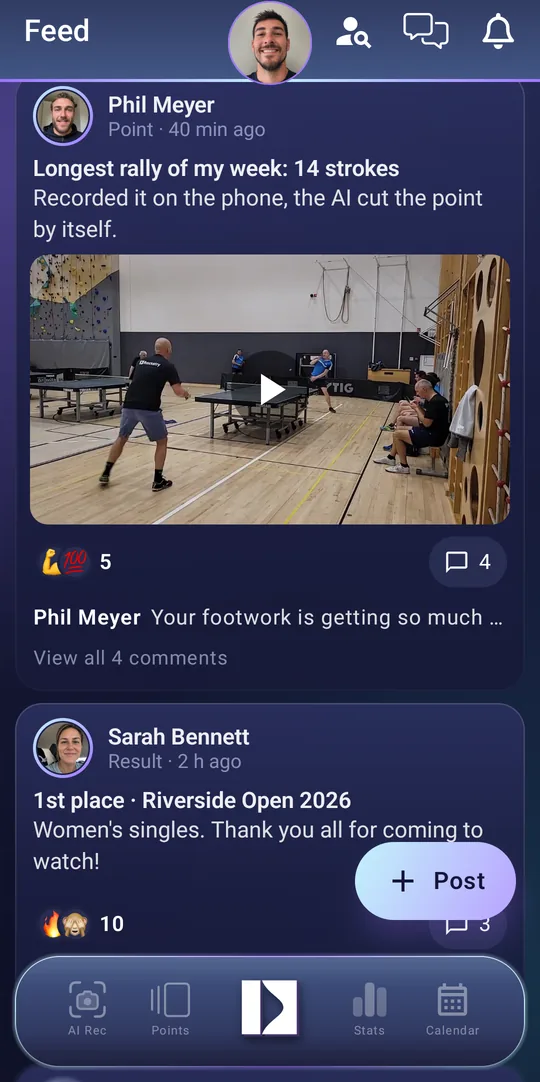
The Feed (the Racketry button in the middle of the bar) shows the points and posts of the players you follow, and your own. React to a post, share it, or open the player's profile.
At the top of the Feed
- Find players (the person with a magnifier): search for players and follow them.
- Chat: messages with friends, your club and your team.
- Notifications (the bell): reactions, new followers and when a highlights video is ready.
9 · Profile
Your profile
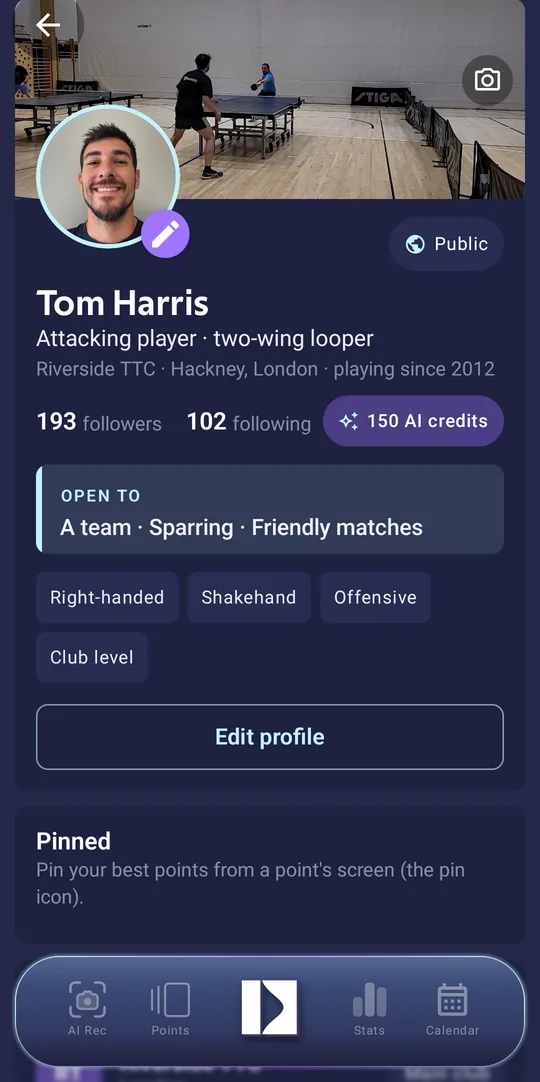
Tap your picture at the top of any screen. Your profile is what other players see: your picture and cover photo, followers, pinned points, clubs, teams, events you're going to, results, skills, pictures and posts.
Make it yours
- Tap Edit profile to change your name, picture and the rest; the camera button changes the cover photo.
- Use + on a section to add a club, team, result, skill or picture.
- The Public or Private button sets who can find you. Going public earns AI credits, and more each day you stay public.
Tip AI credits are for the app's AI features. You get some to start with; your balance is on your profile.
10 · Settings
Players and rackets
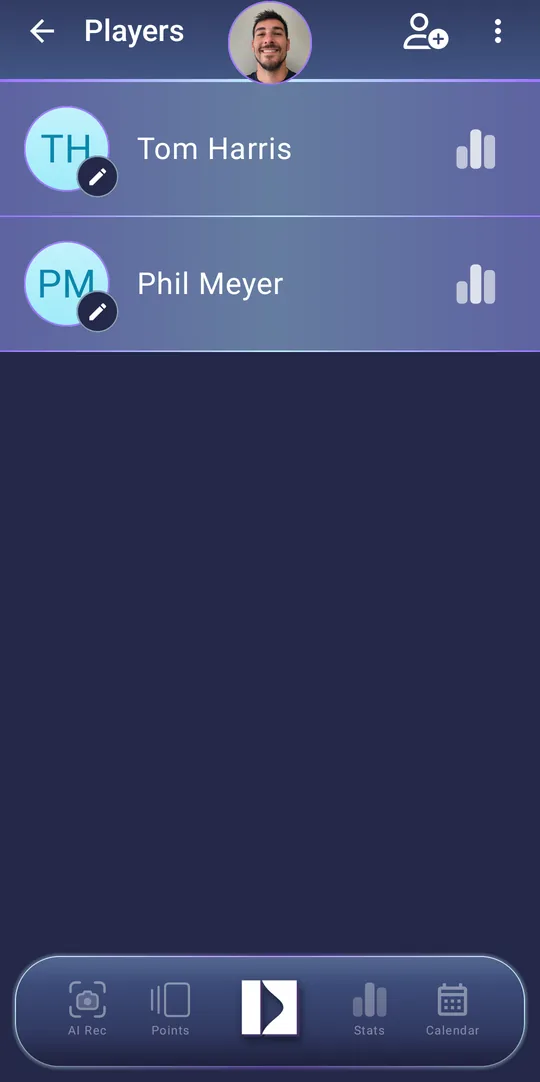
Points are saved for a player. You are the first one: whatever you record is yours unless you pick someone else. To record a friend or a student, add them as a player.
Players
- Profile → Players, then the person with a + at the top to add someone.
- Before you record, pick them under Player in AI Rec.
- Tap a player to open their stats. The pencil on their picture renames, archives or deletes them; their points stay.
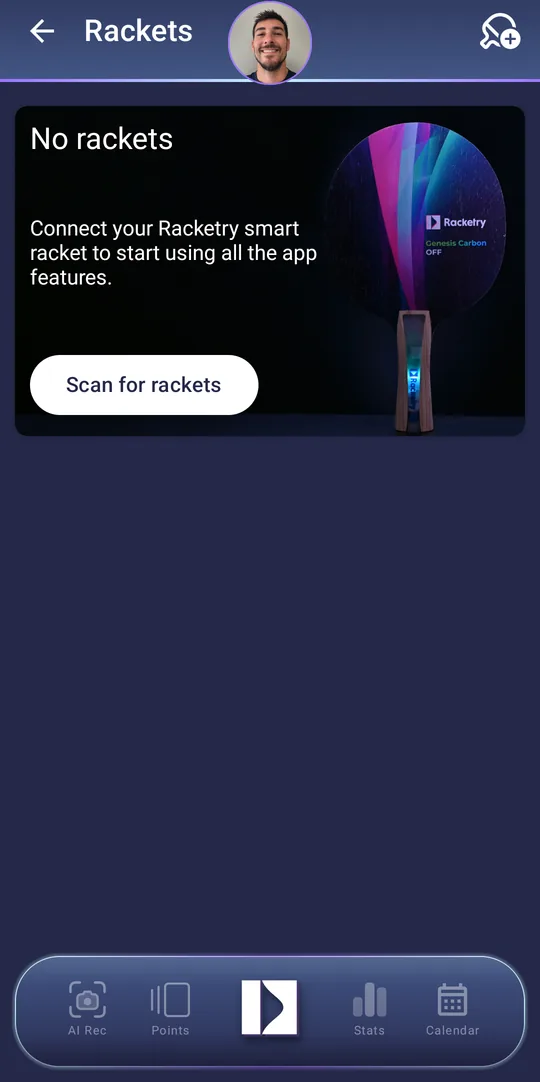
A Racketry smart racket
- Switch the racket on and keep it near the phone.
- Profile → Rackets → Scan for rackets, and pick yours. The first time, Android asks to allow nearby devices.
- In AI Rec, pick the racket under Racket. Its hits now give every point its stroke types and energy.
11 · Settings
Storage, privacy and your account
The bottom of your profile has the app's settings.
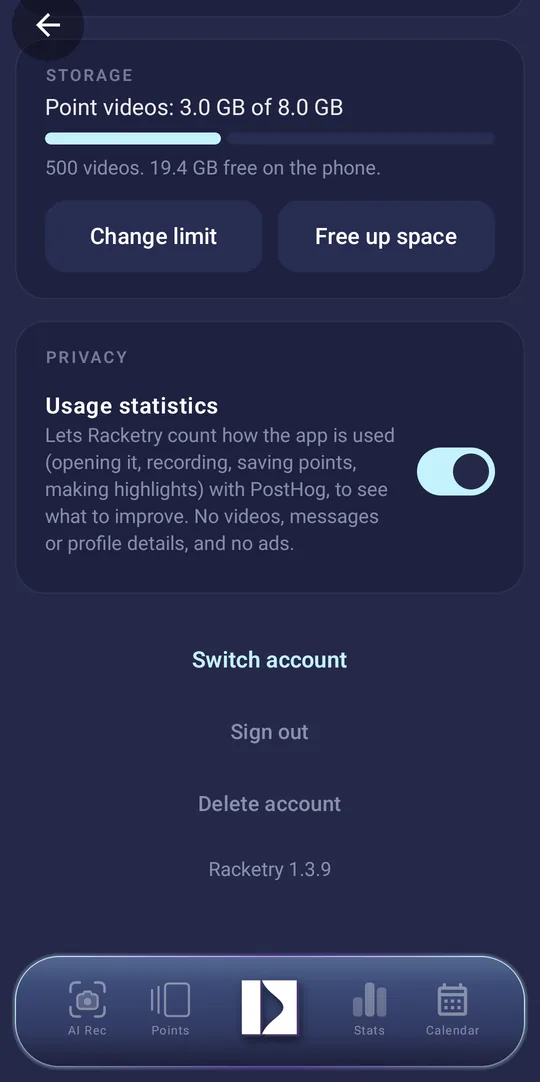
Storage
- Point videos are kept on your phone, up to the limit you set (2 GB to start with). From 80% the app warns you; nothing is ever removed by itself.
- Change limit raises it, as far as your phone has room.
- Free up space removes the videos of points older than a week, a month, three months, six months or a year. The points stay in your list and stats.
Privacy
Usage statistics lets Racketry count how the app is used (opening it, recording, saving points, making highlights), to see what to improve. No videos, messages or profile details, and no ads. Switch it off any time.
Your account
- Switch account signs in with another Google account.
- Sign out signs out on this phone, for a shared phone or one you're handing on. What you recorded stays on the phone under your account.
- Delete account deletes your Racketry account.
Still stuck?
The questions and answers cover which phones work, where your videos are kept and what it costs. Anything else: write to info@racketry.com.